Find and edit transactions

Search and filter, fix one, or change many at once.
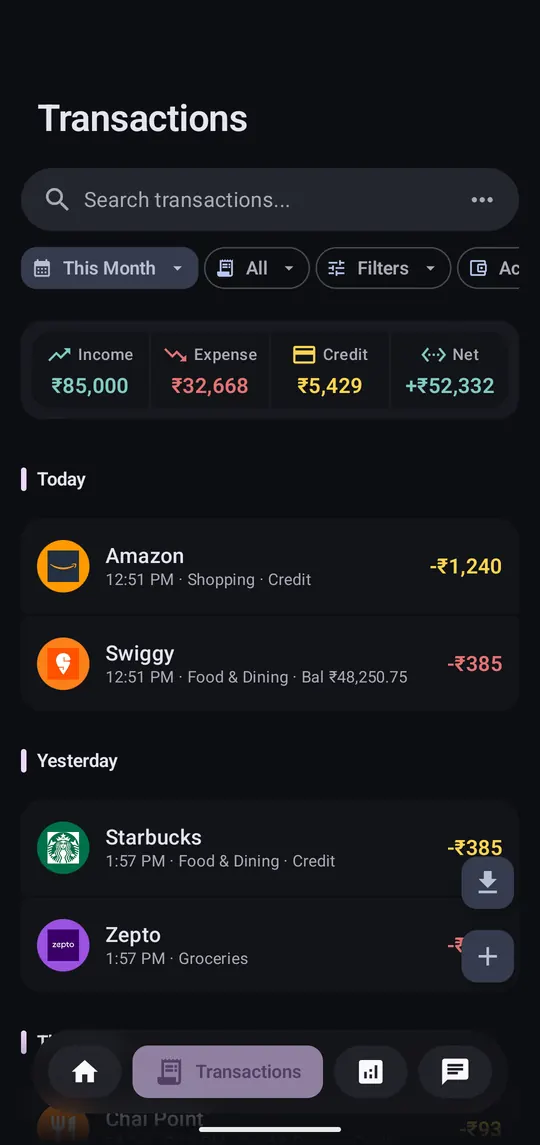
  1. Search or filter

    Step 1 of 5

    Search or filter

    The Transactions tab filters by period, account, type, category and currency.
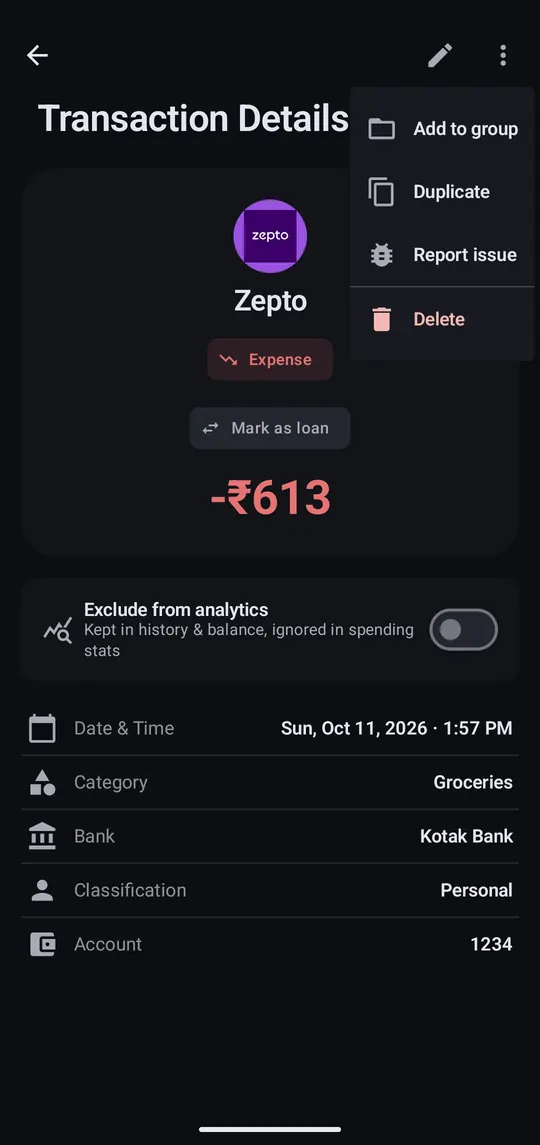
  2. Fix one

    Step 2 of 5

    Fix one

    Tap a transaction to see the original SMS. The pencil edits it; ⋮ duplicates, groups or deletes it.

  3. Change many at once

    Step 3 of 5

    Change many at once

    Press and hold one transaction until it highlights.
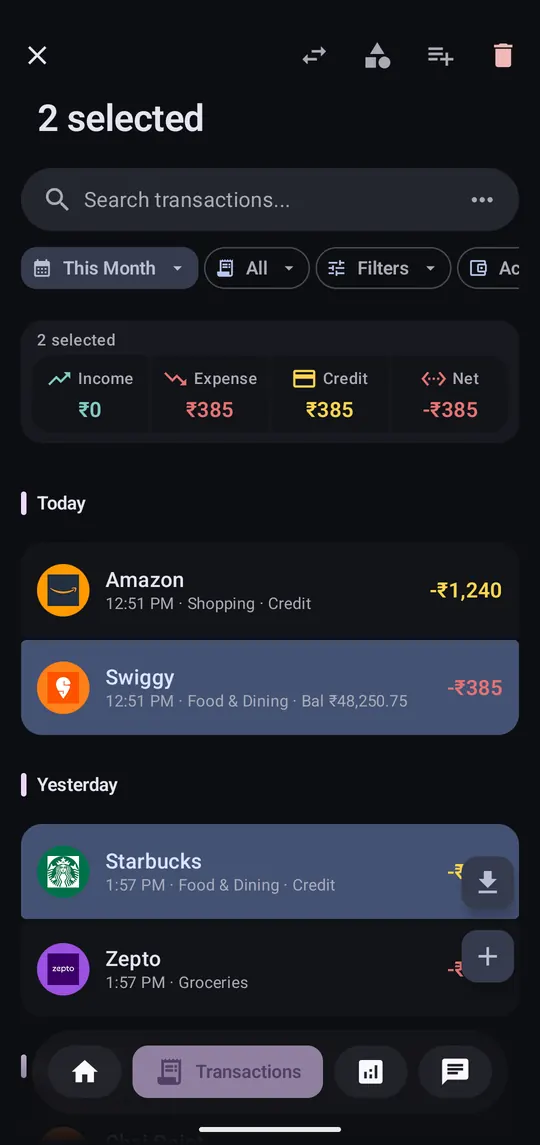
  4. Tap the rest

    Step 4 of 5

    Tap the rest

    Tap every other one you want. The totals card shows just your selection.

  5. Pick an action

    Step 5 of 5

    Pick an action

    The top bar changes their category, groups or deletes them. To mark a transfer, select exactly two (the money out and the money in); the transfer button then appears.

Good to know

Tags and notes
The pencil adds tags, a description and a display name. Tags can apply to every future transaction from the same merchant.
Receipt photos
Attach one from the gallery or camera when adding or editing.
Split into categories
Spread one expense across several categories from its detail page.
Same merchant, every time
When changing a category, apply it to all transactions from that merchant.
Exclude from analytics
Keeps it in your history and balance but out of spending totals.